


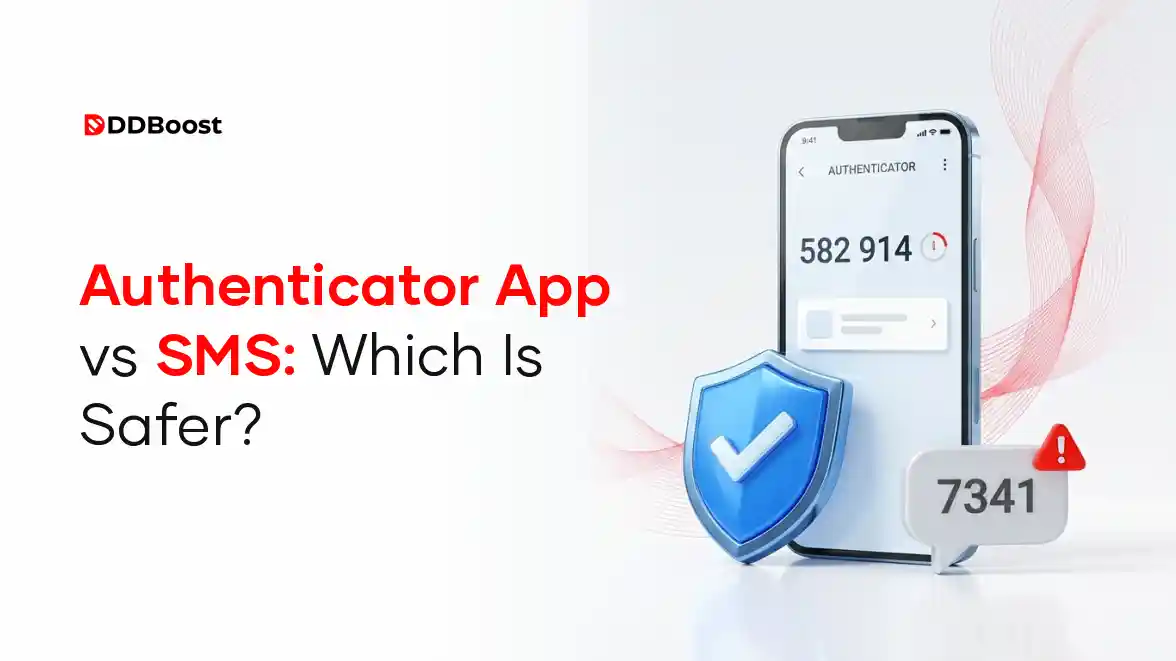
Quick answer: In the authenticator app vs SMS question, the app is safer. An authenticator app makes the login code on your own phone, so nobody can take it by stealing your phone number. SMS codes are still far better than a password alone, so use them where an app is not offered.
What is two-factor authentication?
Two-factor authentication (2FA) means a site asks for two things before it lets you in. The first is your password. The second is usually a short code that changes each time.
That code can reach you in two common ways. A text message (SMS) can send it to your phone number. Or an authenticator app, which is a small free app that makes a new six-digit code every 30 seconds, can create it on your phone.
Both stop the simplest attack: someone who has guessed or bought your password. Where they differ is what happens when the attacker tries harder.
Authenticator app vs SMS: side by side
| Point | SMS code | Authenticator app |
|---|---|---|
| Where the code comes from | Your network (MTN, Airtel, Glo, 9mobile) delivers it | Made on your phone by the app |
| Needs network signal | Yes | No. It works offline |
| SIM swap risk | High. Whoever controls your number gets the code | None. The code is not tied to your number |
| Code delays | Common when the network is busy | None |
| Setup | Type your number | Scan a QR code once |
| If you lose your phone | Get a new SIM with the same number | Need backup codes or a synced account |
| Can be phished | Yes | Yes. A fake site can still ask for the code |
The verdict: pick the app for any account that holds money or controls other accounts. Keep SMS as a backup, or for small accounts where losing access would only be annoying.
Why SMS codes are the weaker option
The biggest problem is SIM swap fraud. A criminal convinces a network agent, or bribes one, to move your number onto a new SIM. From that moment, every code meant for you goes to them. We explain the warning signs in our guide to SIM swap fraud in Nigeria.
The second problem is plain delivery. Codes arrive late during network trouble, and a code that expires before it lands is useless. If you travel and roam, some codes may not arrive at all.
Security bodies agree with this view. In late 2024, the United States cybersecurity agency (CISA) advised people at high risk of hacking to stop using SMS for 2FA and switch to an app or a security key.
What an authenticator app does not protect you from
An app is not magic. If you type your password and the app code into a fake login page, the criminal can use both within seconds. That is phishing, and it beats SMS and apps alike.
The same goes for anyone who calls pretending to be your bank or a platform and asks you to read out a code. No real company asks for it. Our post on the OTP scam in Nigeria shows how these calls usually go.
The rule is simple: a code is only for typing into the app or site you opened yourself. Never share it, whatever the reason given.
Which accounts should you switch first?
You do not need to change everything today. Start with the accounts that would hurt most to lose:
- Your main email. Whoever controls it can reset the password on almost everything else.
- Accounts tied to money. Fintech apps, crypto exchanges, payment platforms and any shop that stores your card.
- Business pages. An Instagram or Facebook page that brings in customers is worth more than it looks until it is gone.
- Your Apple ID or Google account. These hold your photos, backups and saved passwords.
A student with one Instagram account and no money linked to it is fine with SMS for now. A small business owner running three pages and a fintech app should move to an app this week.
Some services, such as WhatsApp, do not use authenticator apps at all. WhatsApp uses its own six-digit PIN instead. Here is how to set up WhatsApp two-step verification.
How to set up an authenticator app
Popular free choices are Google Authenticator and Microsoft Authenticator. Download only from the Play Store or App Store, and check the developer name before you install.
- Install the app on the phone you use every day.
- On the account you want to protect, open the security settings and find "two-factor authentication" or "2-step verification".
- Choose "authentication app" or "authenticator app". The site shows a QR code.
- In the authenticator app, tap the plus sign and scan the QR code.
- Type the six-digit code the app shows into the site to confirm it works.
- Save the backup codes the site gives you. Do not skip this step.
Once the app works, check whether the site still lets SMS act as a backup. If your main worry is SIM swap, remove the phone number as a login option where the site allows it.
What if you lose your phone or change phones?
This is the real downside of an app, and it is why some people get locked out. Phone theft in a bus or market is common, so plan for it before it happens.
- Backup codes: Each site gives you a list of one-time codes. Write them on paper or save them in a password manager. Do not keep them only in a screenshot on the same phone.
- Sync: According to Google's help page, signing in to your Google Account inside Google Authenticator syncs your codes, so they come back on a new phone. Without sync, you must reset 2FA on each site one by one.
- Changing phones: Move your codes before you wipe or sell the old phone. Google Authenticator has an "Export codes" option that shows a QR code for the new phone to scan.
A recovery phone number and recovery email also help. Make sure both are ones you will still own next year.
A mistake to avoid: temporary numbers and inboxes as your backup
Temporary virtual numbers and short-term email inboxes are useful for receiving a sign-up code once. They are a bad choice as the number or email you rely on for 2FA or account recovery.
A temporary number is often gone after a single code. If a site later sends a login or recovery code to it, you will not receive it, and you may lose the account. Use your own SIM, your own long-term email, or an authenticator app for anything you plan to keep.
FAQ
Is SMS two-factor authentication still worth using?
Yes. SMS 2FA blocks most attacks that rely only on a stolen password. It is weaker than an authenticator app because of SIM swap fraud and delivery delays, but it is much better than no second step. Use it where a site offers nothing else.
Does an authenticator app need internet or data?
No. The app makes codes on your phone using the time, so it works with no data and no signal. You only need internet once, to scan the QR code during setup, and later if you want the codes to sync to an account.
Can I use one authenticator app for many accounts?
Yes. One app can hold codes for your email, Instagram, Facebook, fintech apps and more. Each account shows as its own line with its own name and code. Label them clearly so you pick the right one when logging in.
What happens if I delete the authenticator app?
Your codes go with it unless they were synced to an account. You would then need backup codes, or each site's recovery process, to get back in. Before deleting or reinstalling, confirm sync is on or move the codes to the new device first.
Can someone hack my account if I use an authenticator app?
It is much harder, but still possible if you give the code away. Fake login pages and fake support calls can trick you into typing or reading out the current code. Only enter codes on sites you opened yourself, and never share them with anyone.