


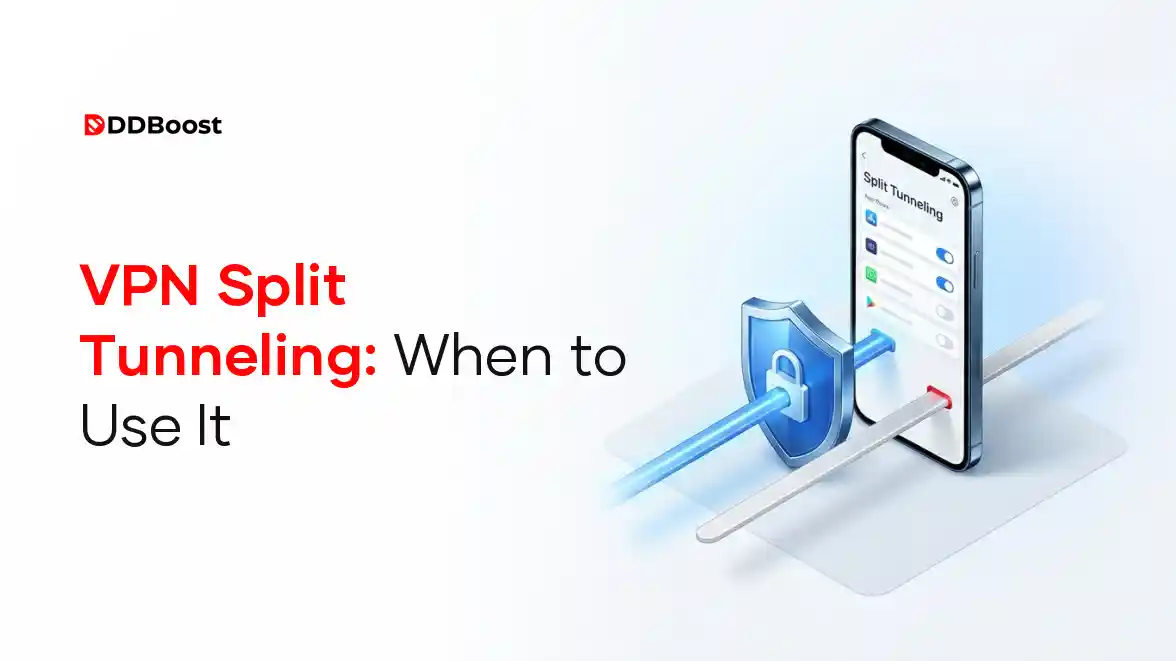
Quick answer: VPN split tunneling lets you choose which apps go through your VPN and which use your normal connection. Turn it on when one app needs your real Nigerian connection, like a bank app or a printer on your home Wi-Fi. Leave it off on public Wi-Fi and for anything private.
What split tunneling means
A VPN (virtual private network) is a tool that hides your internet address and scrambles your traffic inside a private "tunnel". By default, a good VPN sends everything on your phone or laptop through that tunnel.
Split tunneling breaks that rule on purpose. You pick some apps or websites to skip the tunnel. They connect the normal way, through MTN, Airtel, Glo or your Wi-Fi, while the rest stays inside the VPN.
If you are new to how the tunnel itself works, our explainer on what a VPN really hides covers the basics first.
The two ways it is usually set up
VPN apps do this in slightly different ways. The setting is often called "split tunneling", "app exclusion", "bypass" or "allowed apps".
Exclude mode
Everything uses the VPN except the apps you tick. This is the safer choice for most people. You only make holes where you need them.
Include mode
Only the apps you tick use the VPN. Everything else goes out normally. This saves the most battery and speed, but it is easy to forget that most of your phone is unprotected.
Some apps also let you split by website address instead of by app. That is handy on a laptop, where most things happen inside one browser.
When split tunneling is worth turning on
These are the situations where it earns its place:
- Your bank app acts up on the VPN. Some banking and payment apps can refuse to load, log you out or ask for extra checks when your connection looks like it is coming from another country. Excluding the bank app lets it see your normal Nigerian connection while the rest of your phone stays covered.
- You need devices on your home network. Printers, smart TVs and shared drives often stop showing up once the VPN is on. Excluding the printer app or your local network fixes that.
- Your data and speed matter. A VPN adds a little extra data and can slow things down. A student on a small data plan might keep WhatsApp video calls or local news apps outside the tunnel to save both. Our post on why a VPN gets slow explains where the slowdown comes from.
- Local sites show the wrong content. A delivery app, a map or a Nigerian shopping site may show prices or results for another country. Excluding it brings back your local view.
When to keep it off
The big catch is simple. Any app outside the tunnel gets no protection from the VPN. It shows your real internet address and its traffic travels over the open connection.
Keep split tunneling off, or switch to full tunnel, when:
- You are on public Wi-Fi at an airport, hotel, eatery or campus. This is exactly where a VPN does the most good.
- You are doing private work: sending documents, logging into email or handling client data.
- You are on a work laptop. Many companies want all traffic through their VPN, and bypassing it can break their security rules.
- You are not sure what an app does. If you do not know why you are excluding it, do not.
The most common mistake is forgetting. Someone excludes their browser for one quick task and leaves it that way for weeks, thinking they are fully covered. Check your exclusion list every time you change a VPN setting.
Split tunnel vs full tunnel: which should you use?
| Question | Full tunnel | Split tunnel |
|---|---|---|
| What uses the VPN? | Everything | Only what you choose |
| Safety on public Wi-Fi | Best | Only for apps inside the tunnel |
| Bank and local apps | May act up | Usually work normally |
| Data and speed | Some extra use | Less extra use |
| Risk of mistakes | Low | Higher if you forget what you excluded |
My advice: use full tunnel as your normal setting. Use split tunneling in exclude mode, for one or two named apps, only when there is a clear reason.
Does split tunneling work on iPhone and Android?
Android: this is where split tunneling is most common. Many VPN apps offer a per-app list in their settings, so you can tick the apps to exclude.
iPhone and iPad: support is limited. Apple only allows full per-app VPN control on managed devices, such as company phones set up by an IT team. Because of this, several VPN providers say they cannot offer per-app split tunneling on iOS. A few offer a narrower option that excludes certain websites or addresses instead.
Windows and Mac: support depends on the VPN app. Many desktop apps include it, but not all.
So before you pay for a VPN because of this feature, check that the provider offers it on the exact device you use.
How to set it up on most VPN apps
- Open your VPN app and disconnect first. Some apps only save changes when the VPN is off.
- Go to Settings and look for "Split tunneling", "App exclusion", "Bypass VPN" or "Allowed apps".
- Choose exclude mode if the app gives you a choice.
- Tick only the apps that need your normal connection, such as your bank app or printer app.
- Reconnect the VPN.
- Test it. Open a site that shows your IP address in a browser that is inside the tunnel. It should show the VPN location, not Nigeria.
One more thing to check. If your VPN has a kill switch (a setting that cuts your internet when the VPN drops), find out how it treats excluded apps. Our guide to the VPN kill switch explains what it protects.
If you still need a VPN plan for your phone or computer, you can buy one from the DDBoost dashboard and pay from your naira wallet.
Frequently asked questions
Is VPN split tunneling safe?
It is safe if you use it carefully. Apps inside the tunnel stay protected. Apps you exclude are not protected by the VPN at all, so keep excluded apps few, trusted and known. Turn it off on public Wi-Fi.
Does split tunneling make my VPN faster?
It can make the excluded apps faster, because they skip the VPN server. The apps still inside the tunnel run at the same speed as before. It also cuts the small extra data a VPN adds for those excluded apps.
Why is there no split tunneling option on my iPhone?
Apple limits per-app VPN routing to managed devices, like company phones. Many VPN providers say this is why their iPhone app has no per-app split tunneling. Some offer website-based exclusion instead, so check your provider's help page.
Should I exclude my banking app from the VPN?
If your bank app works fine with the VPN on, leave it inside. Exclude it only if it fails to load or keeps flagging your login. Never do banking on public Wi-Fi with the bank app outside the tunnel.
Can people see what I do in excluded apps?
Your network and the website can see your real internet address for those apps, just like when no VPN is running. Most banking and big apps still use their own encryption, but the VPN adds nothing extra for them.