


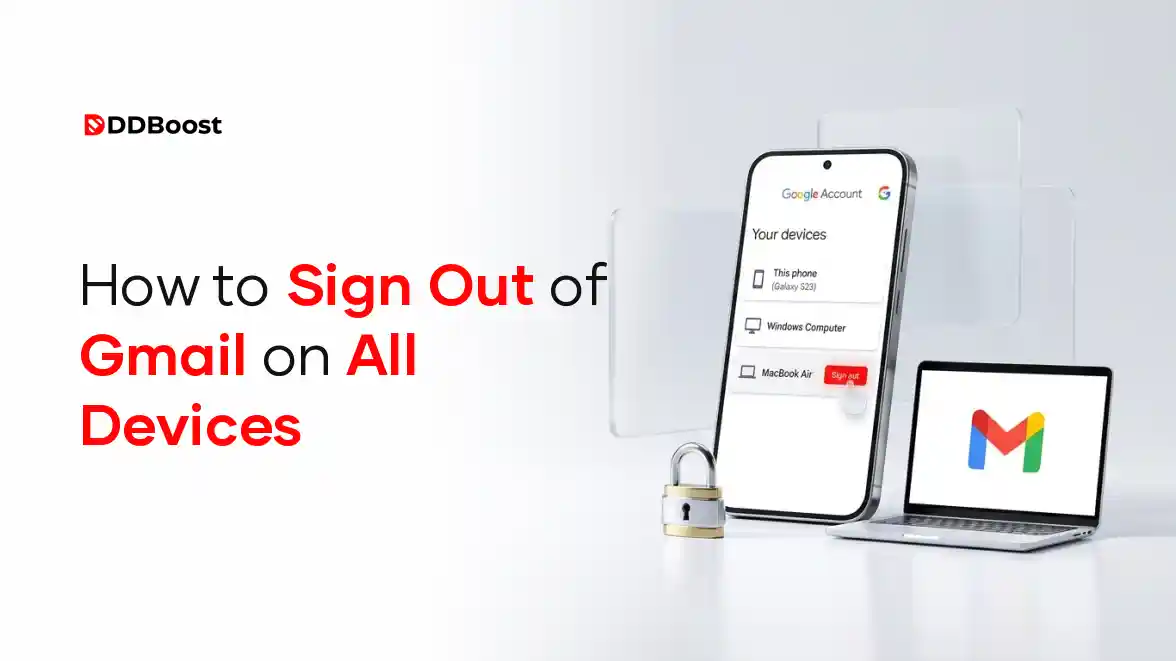
Quick answer: Gmail has no single button that signs you out of every device at once. To sign out of Gmail on all devices, open your Google Account, go to Security, tap "Manage all devices" and sign out of each one you no longer use. If you think someone else is in your account, change your password too, because that signs you out almost everywhere in one step.
Why you might need to sign out remotely
Most people only think about this after something goes wrong. A few common situations in Nigeria:
- You checked your email at a cyber cafe or a business centre and forgot to sign out.
- You printed a document from a friend's laptop and your Gmail is still open on it.
- You sold or swapped your old phone, or gave it to a younger sibling.
- Your phone was stolen or snatched.
- You got an email from Google about a sign-in you do not remember.
In each case, anyone holding that device can read your mail, reset passwords for your bank app or social media, and see your saved files. Signing that device out cuts them off.
How to sign out of Gmail on all devices from a computer
Use this when you are on a laptop or desktop you trust.
- Open Gmail in your browser and click your profile picture at the top right.
- Click "Manage your Google Account".
- On the left, click "Security" (Google sometimes labels it "Security & sign-in").
- Find the "Your devices" box and click "Manage all devices".
- Click a device you do not use any more, then click "Sign out".
- Go back and repeat for every other device you want to remove.
Google's own help page on checking devices with account access describes the same steps.
Why one device can appear several times
You may see the same phone or laptop listed two or three times. According to Google, these can be separate sessions (a session is one signed-in copy of your account, such as one browser). To fully cut off that device, sign out of every entry with that name, not just the first one.
How to do it from your Android phone or iPhone
The steps are almost the same on a phone.
- Open the Gmail app and tap your profile picture at the top right.
- Tap "Manage your Google Account".
- Swipe across the top tabs and tap "Security".
- Scroll to "Your devices" and tap "Manage all devices".
- Tap the device you want to remove and choose "Sign out".
You cannot sign out of the phone you are holding this way. Google treats it as your current device. To take Gmail off the phone in your hand, see the section below on removing an account from a phone.
Is there a "sign out everywhere" option?
Not as a button. Some older guides mention one, but Google's current help pages only describe signing out device by device.
The closest thing is changing your password. Google says that when you change or reset it, you are signed out everywhere except:
- devices you use to confirm it is you when you sign in (for example, the phone that shows the "Is it you trying to sign in?" prompt)
- some devices with third-party apps you gave access to your account
- smart home devices you gave access to
So if you suspect a stranger is in your account, do both. Change the password first, then open "Manage all devices" and sign out anything left that you do not recognise. If one of those leftover devices is the one you use to confirm sign-ins, and it is not yours any more, sign it out now.
To change your password: Google Account, then Security, then "Password". Pick a long one you have never used anywhere else. If remembering many passwords is the problem, a password manager is worth a look.
Removing Gmail from a phone you still have
On a phone or tablet, Gmail has no "Sign out" button. You remove the account from the device instead. This does not delete your Google Account or your emails. It only takes them off that phone.
In the Gmail app on Android or iPhone, tap your profile picture, then "Manage accounts on this device". On iPhone, tap "Remove from this device" next to the account. On Android, this opens your phone's account settings, where you tap the Google account and choose "Remove account".
Selling an Android phone? Remove your Google account before you do a factory reset. Android has a feature called Factory Reset Protection, which asks for the last Google account on the phone after a reset. If you skip this step, the buyer may be stuck and come back to you.
What to check after signing out a strange device
Signing out stops the session. It does not undo anything the person already changed. Google's advice for a hacked account includes checking these settings:
- Recent security events: in Security, open this list. If you see a change you did not make, choose "No, it wasn't me" and follow the steps.
- Recovery phone and email: make sure they are still yours. A thief who adds their own number can take the account back later.
- Gmail forwarding and filters: on a computer, open Gmail Settings, then "See all settings". Check "Forwarding and POP/IMAP" and "Filters and Blocked Addresses". A hidden forwarding rule can quietly send copies of your bank emails to someone else.
- Apps with access: in your Google Account, review third-party apps and remove any you do not know.
Then turn on 2-Step Verification (a second check, like a code or a prompt on your phone, after your password). If you are choosing between SMS codes and an app, read authenticator app vs SMS codes before you decide.
Spotting a device that is not yours
The device list shows a name (like "Infinix Hot 40" or "Windows"), an approximate location and when it last talked to Google. A few things that look scary but are often harmless:
- A location in a different city. Google says the locations it shows are approximate, because they come from your internet connection, not your GPS.
- A recent time on a phone you have not touched in days. Google notes that the time shown is the last contact with Google, which can be newer than your last real use.
What should worry you: a phone model you have never owned, a computer you did not sign in on, or a country you have not been to. Sign those out and change your password straight away.
Frequently asked questions
Can I sign out of Gmail on all devices at once?
No, not with one button. You sign out each device under "Manage all devices" in your Google Account. Changing your password comes close, because Google then signs you out on most devices, except the ones you use to confirm sign-ins and some linked apps and smart home devices.
Will the other person know I signed them out?
Google does not send them a message. They will simply find that Gmail asks for a password the next time they open it. If you also changed your password, the old one will no longer work for them.
Does signing out of a device delete my emails?
No. Your emails, contacts and files stay in your Google Account. Signing out or removing the account only takes them off that one device. You will see everything again when you sign in on a device you trust.
My phone was stolen. Should I sign it out?
Yes, and quickly. Use another phone or a computer to sign the stolen phone out of your Google Account, then change your password. Our guide on what to do when your phone is stolen in Nigeria covers your SIM and bank apps too.
Why does a signed-out device still show in the list?
Google keeps devices from the last few weeks in the list. Ones you have removed are marked "Signed out". That label means the session has ended. The entry drops off the list on its own after a while.